


In today’s digital world, what sets a photograph apart is its ability to tell a story and to express emotions. This is where AI talking photo technology comes in handy. This tech lets you go beyond just seeing a picture while leaving an impression on your mind for days. Even if you are not an editor or expert, using AI photo talk tool is very easy and has no learning curve. One such amazing tool is Wondershare Virbo. It’s like giving photos a voice to speak to us and share their stories, making them more meaningful and relatable.
In this article, we will guide you on how to use Virbo to create stunning pictures talking on iPhone, Android, and Windows for free. Take a look!
Part 1: Why Use Al Talking Photo Online to Make a Photo Talk?
Part 2: Wondershare Virbo: Best Talking Photo Tool
Part 3: Steps to Make Picture Talk with Al Talking Photo
3.1. Make Your Pictures Talk Online
3.2. Make Your Pictures Talk on Windows
3.3. Make Your Pictures Talk on iOS/Android
Part 4: How to Create Videos Using A Talking Picture?
Part 1: Why Use Al Talking Photo Online to Make a Photo Talk!

Talking photos are best for preserving memories in a more impressive way than traditional photographs. By adding voice to photos, they become a complete representation of travel memory. This makes the clips more engaging and enduring. Also, you can use the talking photos for educational purposes too. For instance, pictures talking about museums or historical places can help students remember about places in an easy and better way. It also provides additional information related to visual content.
Are you spending hundreds on marketing of products or services? If yes, then using an AI talking photo AI can save you money as it can be used for marketing and branding. These types of images can be a powerful tool for conveying the right message about products at no cost. Use them to tell the brand stories to improve customer engagement.
On top of that, you can create talking avatars from photos that are not only visually appealing but also interactive. Use AI photo talking avatars on social media to gain new followers. All in all, with talking photos, you can captivate viewers, boost engagement, and differentiate your content from competitors.
Part 2: Wondershare Virbo: Best Talking Photo Tool
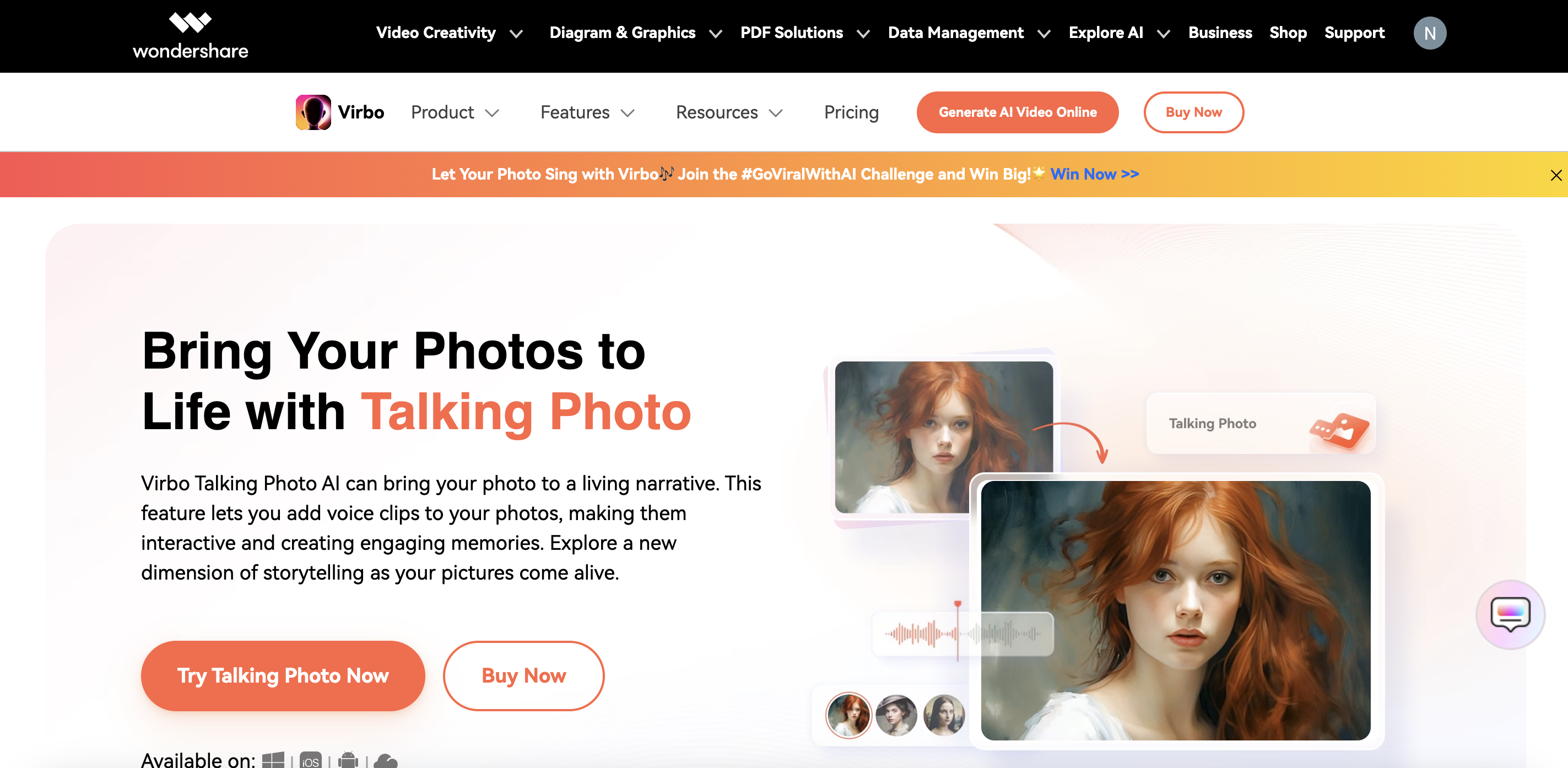
If you wish to transform your photo to a talking video, then Wondershare Virbo is a great option. Using artificial intelligence-generated content (AIGC) technology, Virbo excels at creating talking photos online for free. It transforms static images into dynamic storytellers, conveying emotions, explanations, or personalized messages. The best part is that Virbo is very easy to use and requires no technical skills to make a photo talk. Who says beginners can’t take advantage of AI tools? Give wings to your creativity with Virbo.
Here are the amazing features of Virbo:
- Text to speech: It can quickly convert text to speech to add voiceover in talking photo.
- Customized voice: You can also add your voice or any other person’s voice in a talking photo.
- Background music: Virbo has a wide selection of background music. You can convert your boring photo by adding amazing music from its library or uploading your own.
- AI script: The AI script option of Virbo helps generate a lively script based on your image.
- Audio script: In this tool, you can add a script through your voice or through audio. This helps reduce manual errors in the script.
- Add subtitles: You can add the live subtitles to your photo by using these features. It can engage your audience on social media and increase clarity for better understanding.
- Multi-language options: Virbo allows you to add voiceover in more than 100 languages, which is best for making talking photo versatile for a global audience.
- Preset templates: There are preset templates that you can use to create a talking avatar for social media, marketing, profile pictures, and more. These avatars can then speak based on your script.
Part 3: Steps to Make Picture Talk with Al Talking Photo
In this part, you need to introduce how to use different versions of Wondershare Virbo to make photo talking.
3.1. Make Your Pictures Talk Online
Steps to use Wondershare Virbo online version to make picture talk.
Step 1: Upload your photo or choose a template
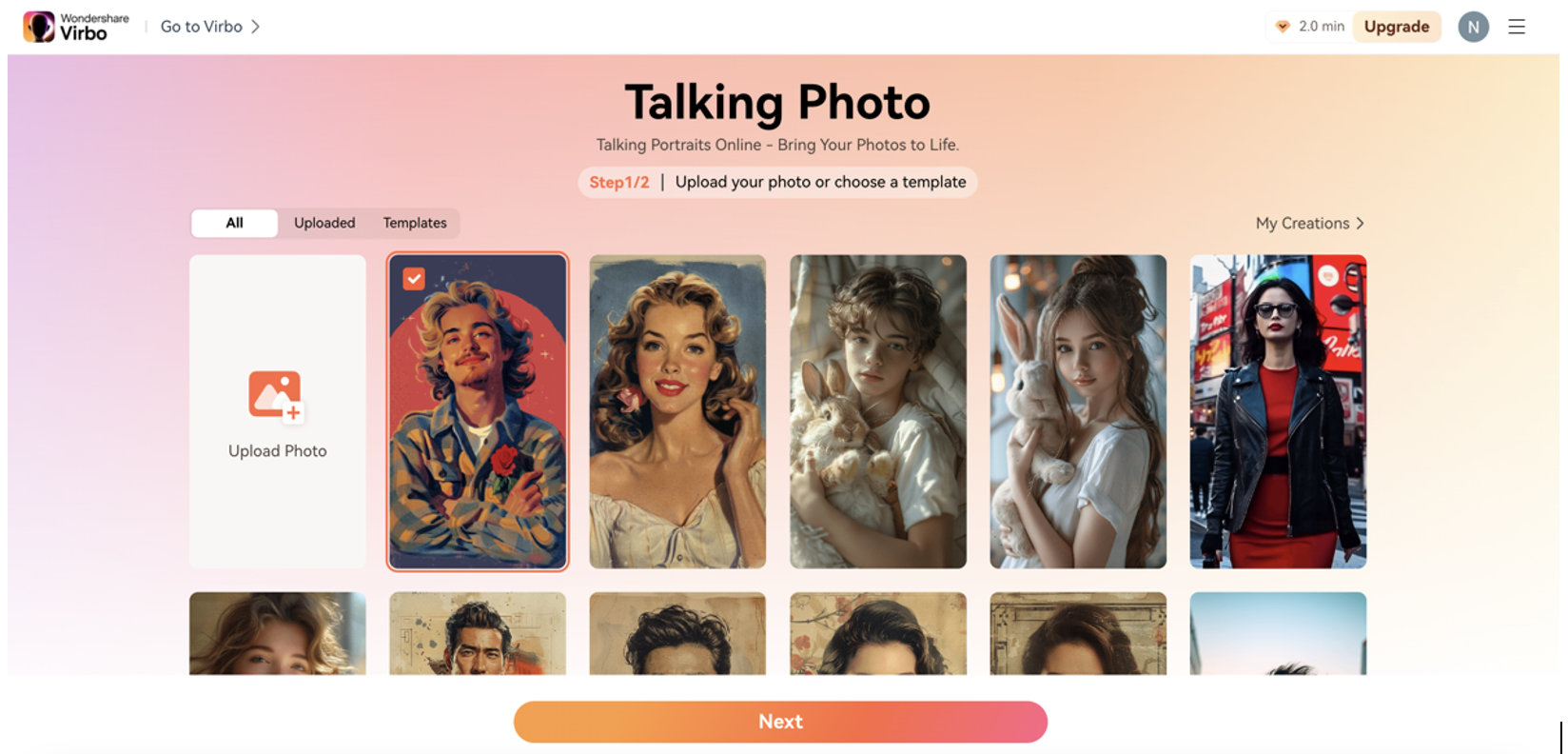
First, you need to open Wondershare Virbo on your device and then sign in for free. After this, select “Talking Photo”. On a new page, upload your picture or choose one from preset templates to make your pictures talk.
Step 2: Input text or script

Now, you need to add text in right-side box for voiceover. In Virbo, you can either enter the text yourself or, add it via audio or can get it written by the tool itself with the help of AI script. After this, click Next, and its done.
Step 3: Download the talking photo
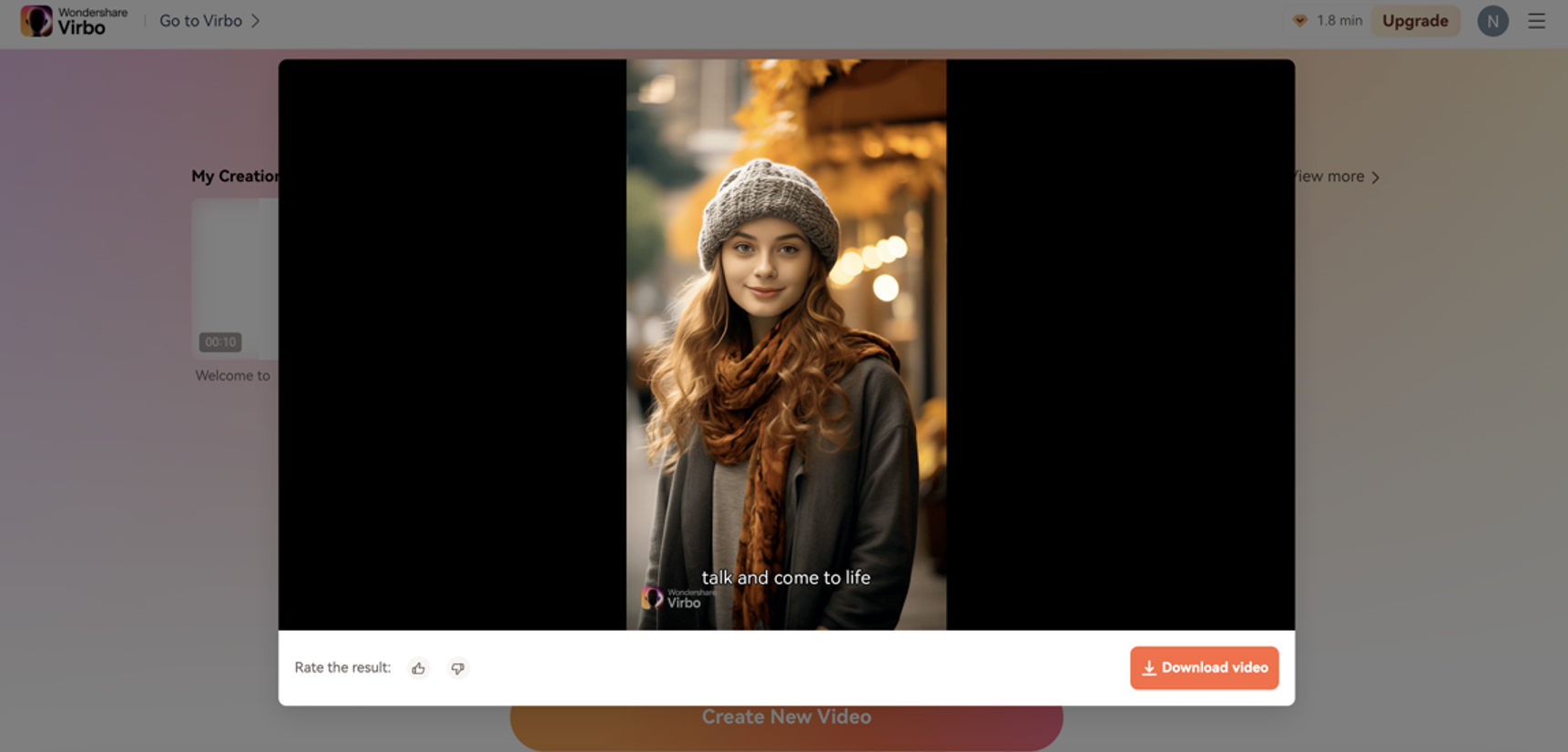
Finally, you get your talking photo, and you can download it on your system. It is very easy and quick!
3.2. Make Your Pictures Talk on Windows
Steps to use Wondershare Virbo on Windows to make picture talk.
Step 1: Upload your photo or choose a template
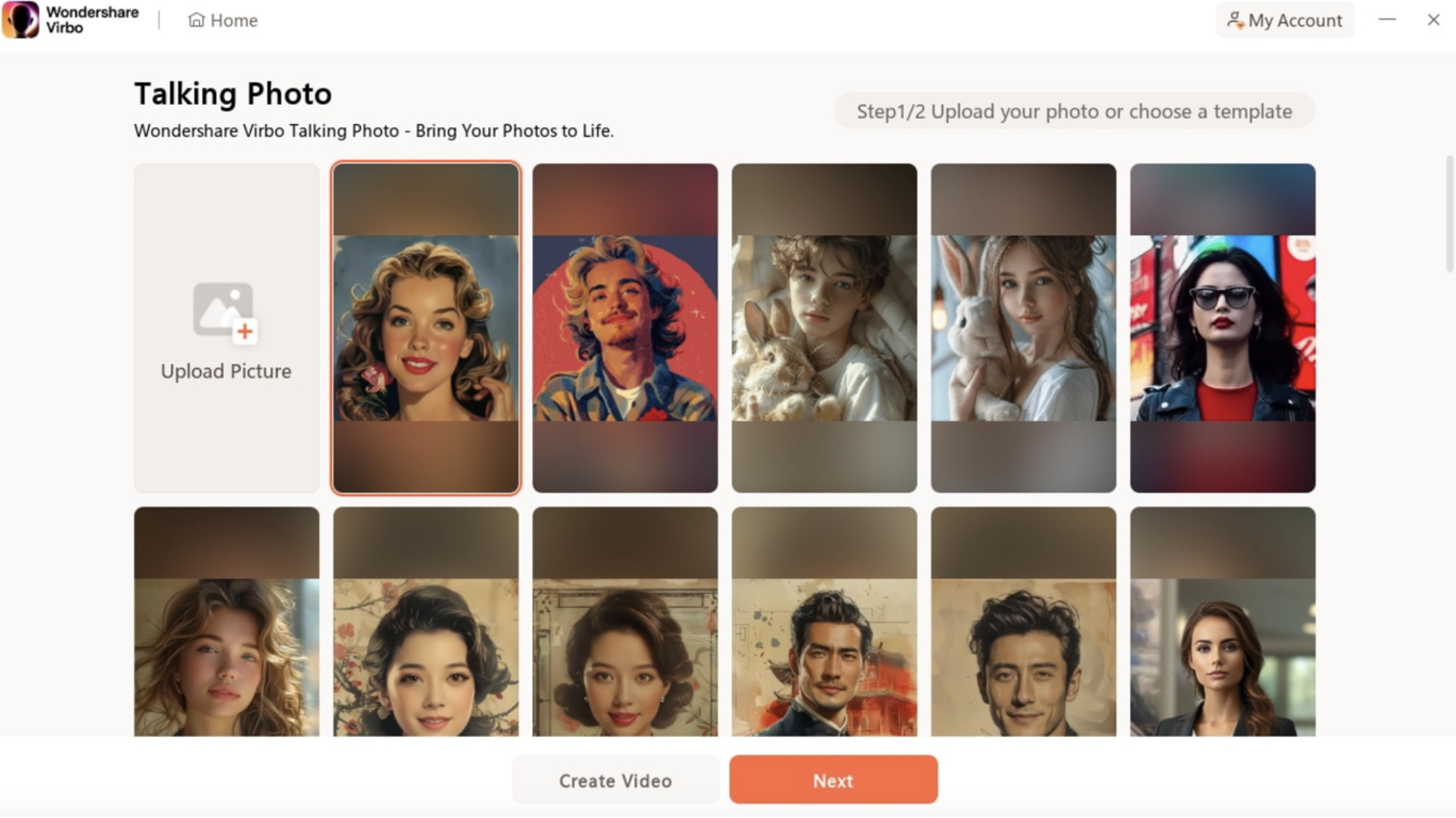
First, you need to open Wondershare Virbo on your computer and then sign in for free. After this, select “Talking Photo” to make image talk. On a new page, upload your picture or choose one from preset templates.
Step 2: Input text or script
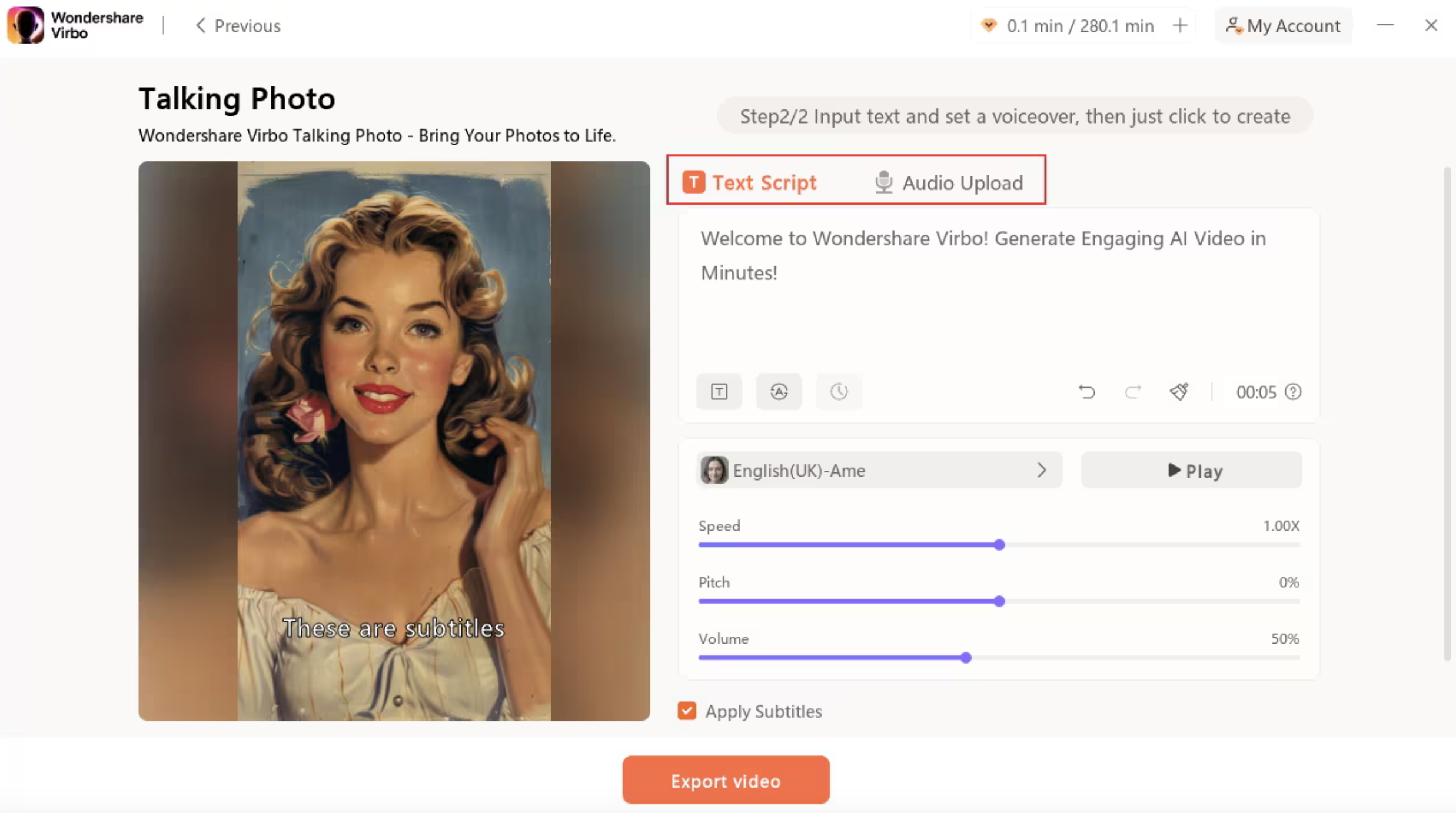
Now, you need to add text in the right-side box for voiceover. In Virbo, you can either enter the text yourself or, add it via audio or can get it written by the tool itself with the help of an AI script. After this, click Next and it is done.
Step 3: Download the talking photo
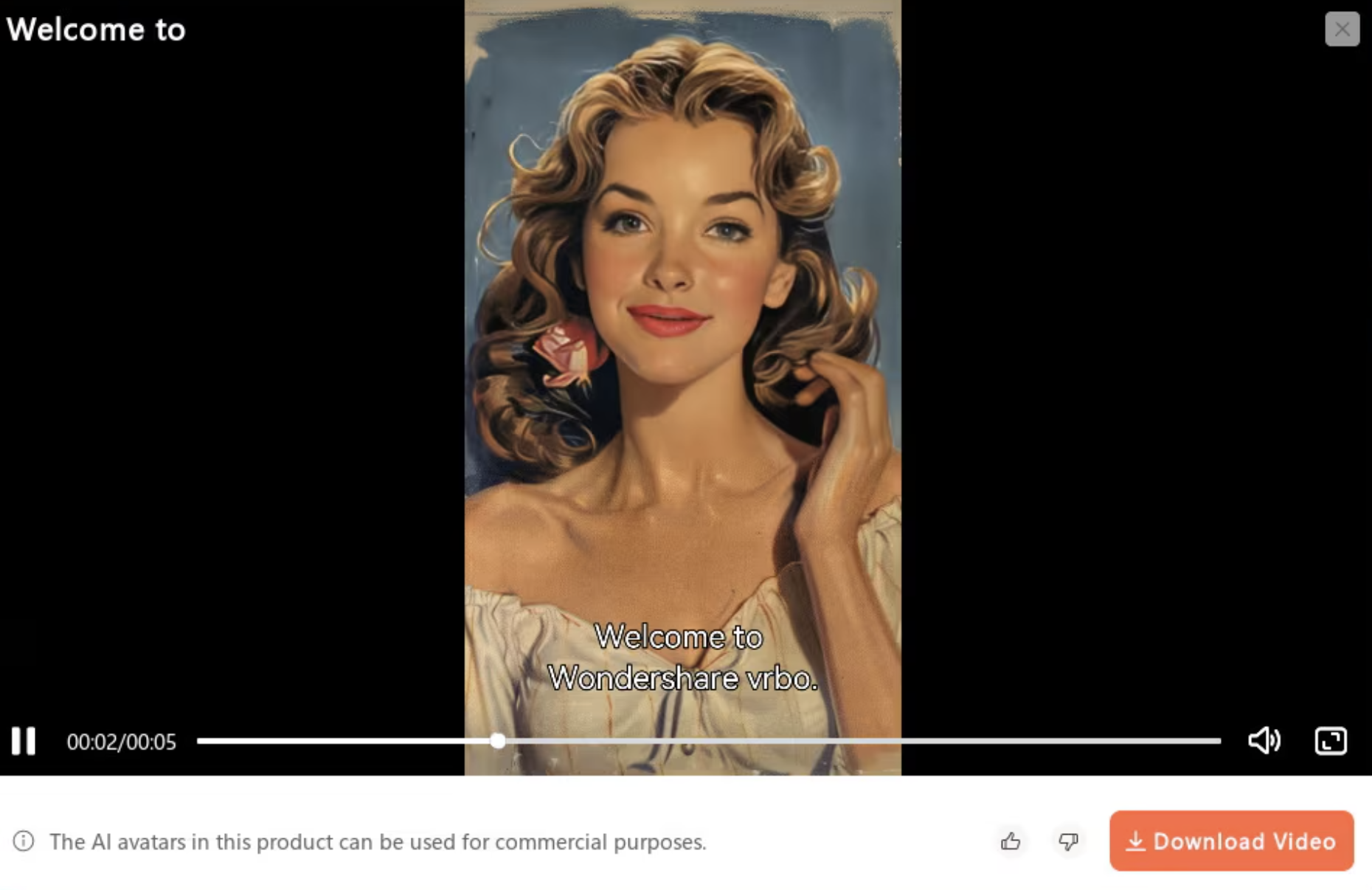
Finally, you get your talking photo, and you can download it on your system. It is very easy and quick!
3.3. Make Your Pictures Talk on iOS/Android
Here are the steps to use Virbo on your phone (iOS/Android) to make your picture talk:
Step 1: Download the app and select talking photos
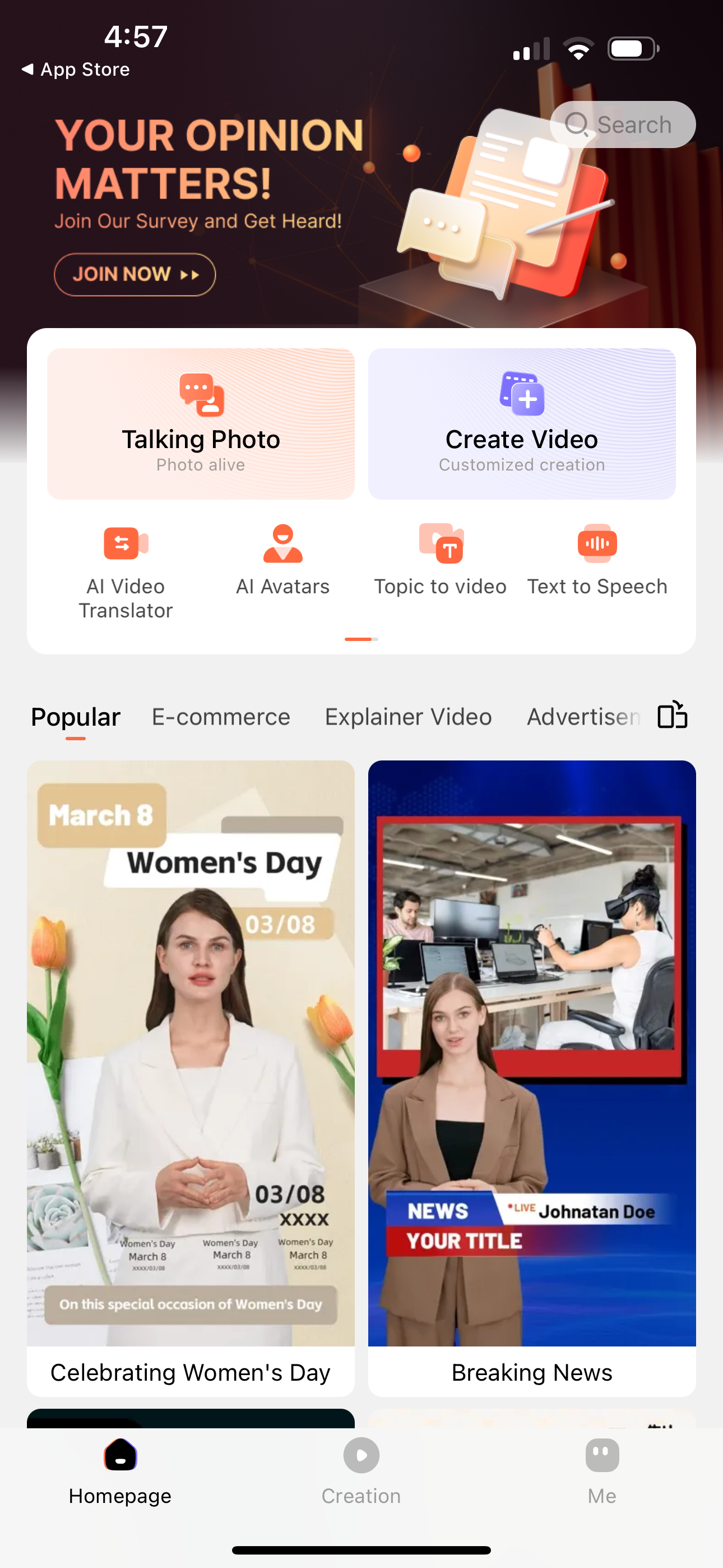
First , download the Wondershare Virbo app from App Store or Play Store on your device and launch it. Now, click on “Talking Photo.”
Step 2: Upload photo/ choose a template

Now, upload a photo you wish to make a talking picture or choose from preset templates to make a talking AI avatar.
Step 3: Input text
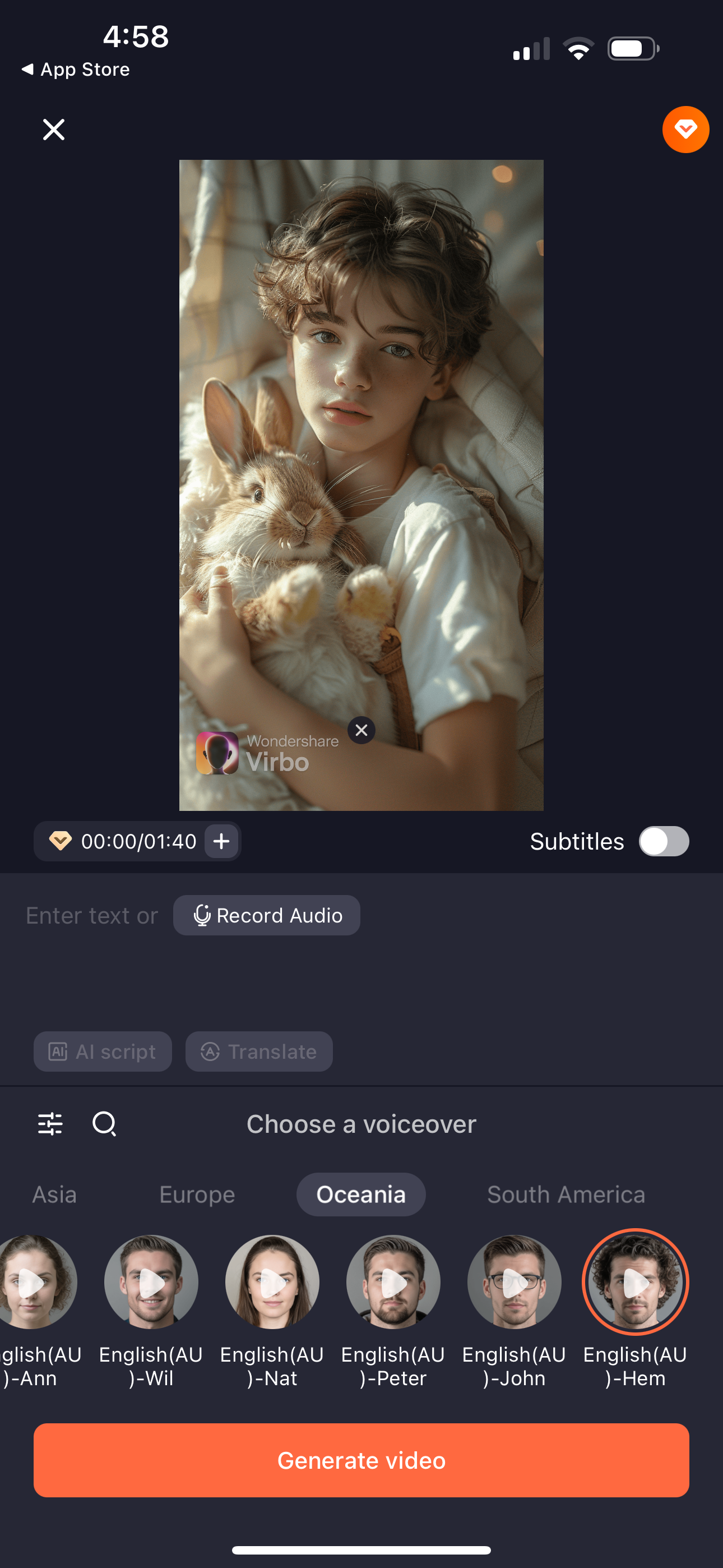
Now, add script or text and click generate. You can also choose voiceover in a different language.
Step 4: Save the output
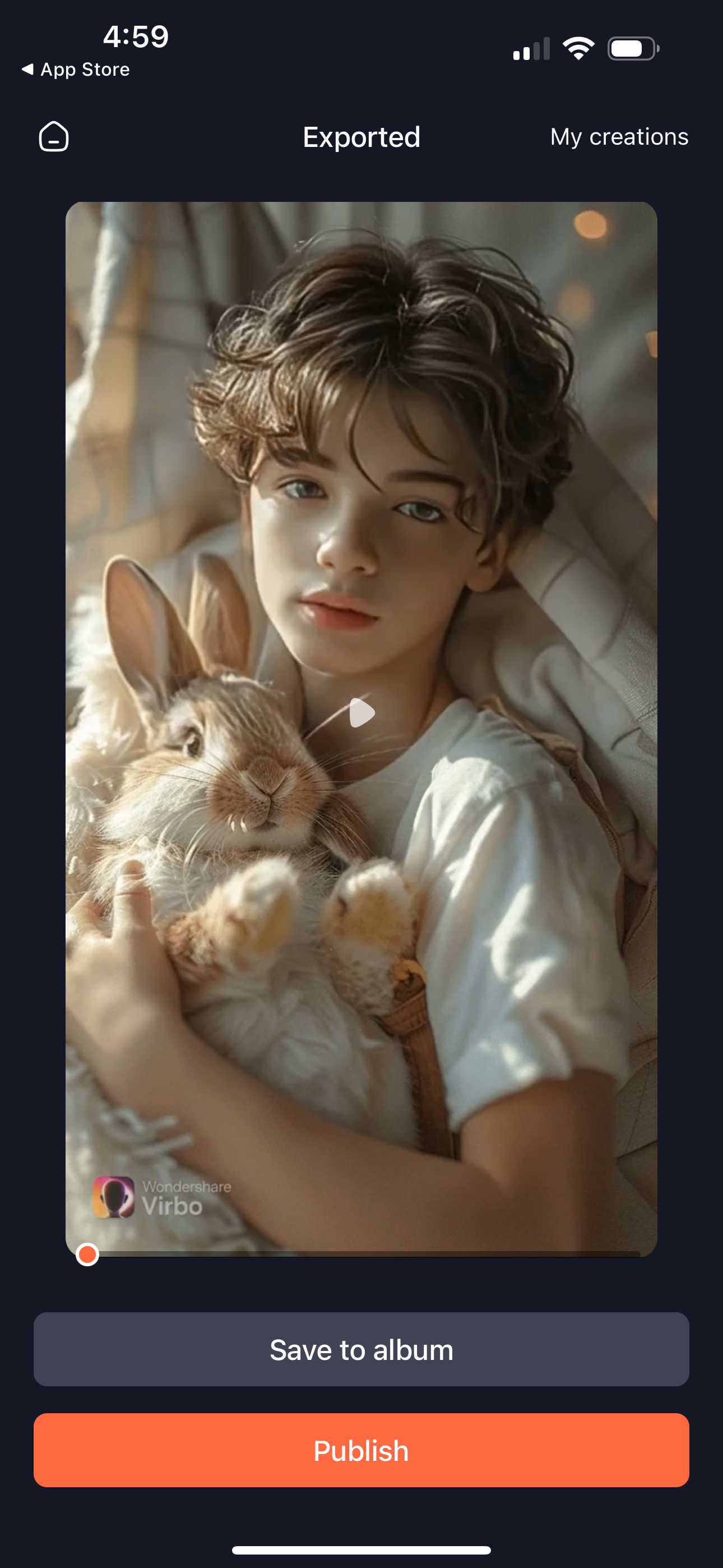
Finally, click “Save to album” to save the talking photo in your device. You can also publish it directly to social media.
Part 4: How to Create Videos Using A Talking Picture?
Are you wondering how to create video from photos in seconds? If yes, then Virbo’s Talking Photo can fulfill your wish! Using this tool, you can make photos talk or even generate videos using preset avatars or photos uploaded from your computer.
Here are the steps to use the Wondershare Virbo Win version to use talking pictures to create videos:
Step 1: Upload photo
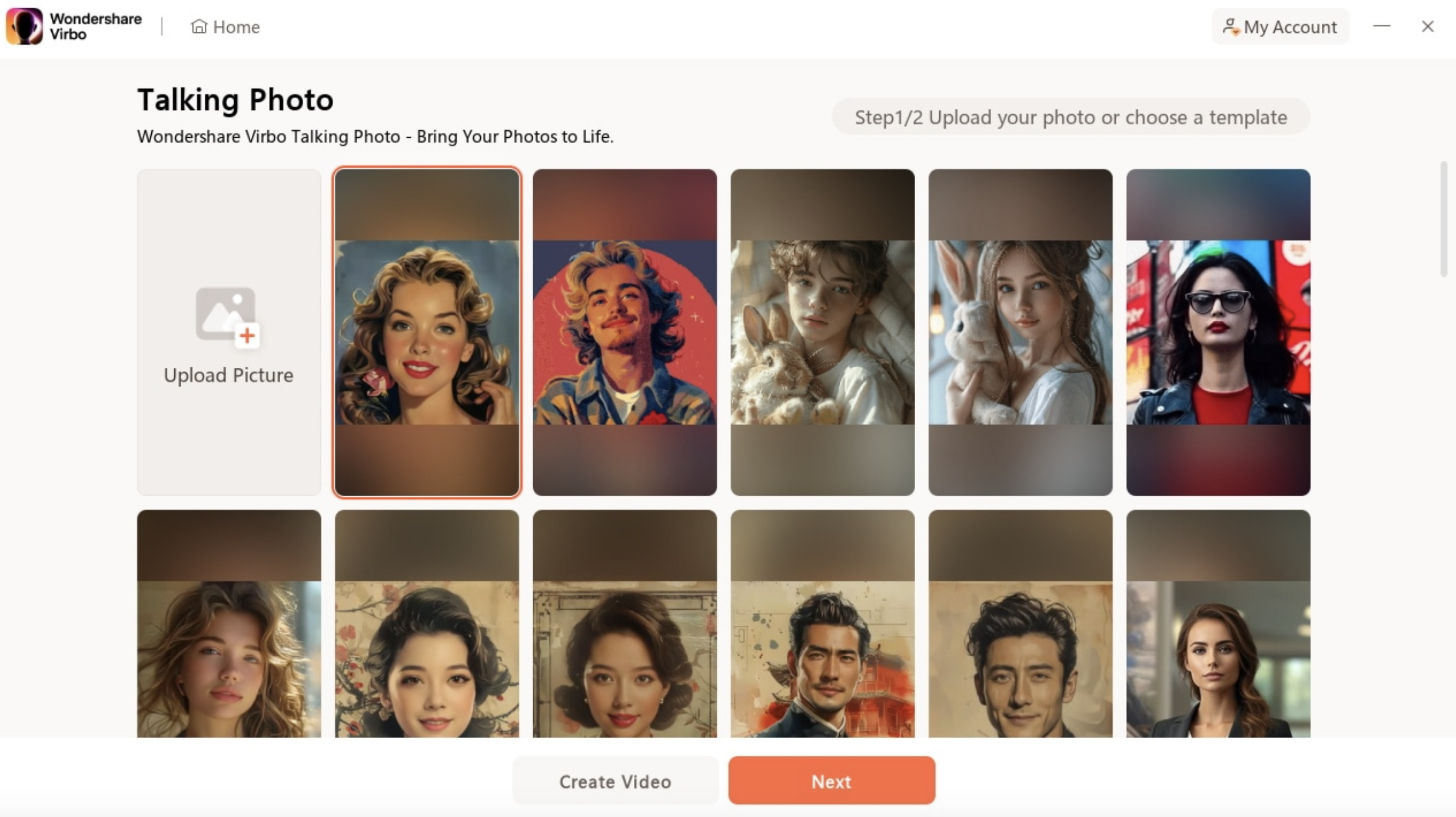
Open Wondershare Virbo on Windows, and then click on “Talking Photo” on the homepage. After this, click “+” to upload an image and tap “Create Video” to start creating a new video.
Step 2: Edit video
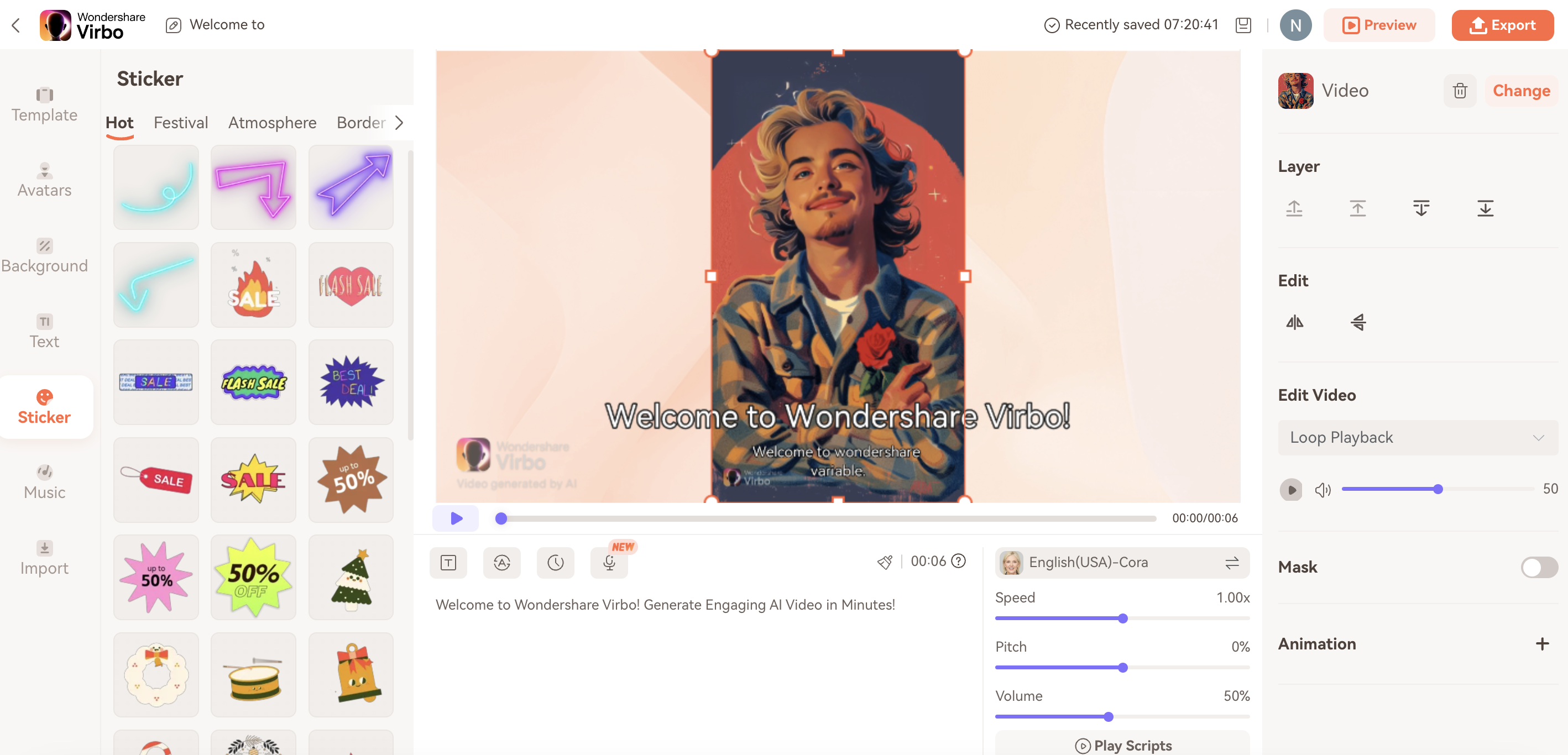
Here, you can edit the video and adjust the audio pitch. You can add stickers, emojis, arrows, text, background, and more in the generated video to make it more attractive.
Step 3: Export video
Once you complete the edit, click Preview button to preview the videos. Finally, click “Export” to download the video on your computer.
Conclusion
Now, you know how to make talking photo. You can use Virbo to make talking pictures for your social media, business website, YouTube, TikTok, and more. This will add new life to still images while making them more interesting and impressive for viewers. Using Virbo, you can add voice to any photo or can create avatars to use for various purposes. The best part is that Virbo is free to use on all devices, Windows, Android, iPhone, and MacBook. It is an online tool that anyone can use without any skills or knowledge.
Post published in: Business